
June 24 2026 APP 2.0.0-beta46 has been released !
Improved internal memory configuration (lower ! memory usage), fixed beta45 startup issue, fixed Set Save Directory & 2-panel mosaics.
May 27 2026 APP 2.0.0-beta45 has been released !
Fully Multi-Threaded LNC, many improvements for the registration engine, platform upgrade, and further tuning of internal memory consumption and memory release back to OS.
Apr 14 2026: Google Pay, Apple Pay & WeChat Pay added as payment options
Update on the 2.0.0 release & the full manual
We are getting close to the 2.0.0 stable release and the full manual. The manual will soon become available on the website and also in PDF format. Both versions will be identical and once released, will start to follow the APP release cycle and thus will stay up-to-date to the latest APP version.
Once 2.0.0 is released, the price for APP will increase. Owner's license holders will not need to pay an upgrade fee to use 2.0.0, neither do Renter's license holders.
Hi folks,
I followed the advice here: https://www.astropixelprocessor.com/community/tutorials-workflows/simple-mosaic-tutorial/
On a simple mosaic and it worked great.
However, when I compare it to the result from Pixinsight, I don't like the result as much as I lose more of the panel data. It's almost like there is a rotation or something ? The object itself is not rotated but the black areas are harder to crop around
I'd rather use APP because its so much easier but I'd like the result to look like what I got in Pixinsight

This was done with Beta 38 & 39 with same results
Hi Nick @nickambrose,
Thank you very much for posting your question. So the top image is from Pixinsight and the bottom one from APP right?
I think you can definitely solve this in APP. Did you try the projection rotate feature in beta39 together with the quick projection preview? You can find these settings below the 4) start register button.
The orientation of the APP result is defined by the reference frame. So if you choose another reference manually, the result will be slightly differently rotated/oriented I would think. The rotate slider in the projection settings is the rotation relative to the orientation of the chosen reference frame. I suspect that if you rotate a couple of degrees in the correct direction that your issue is solved.
I have implemented the projection settings especially for this reason. If you create a big widefield mosaic it is vital to have this functionality.
From the new release notes:
With both registration models, you can enable a quick projection preview that will load the registered images in low resolution into the image viewer and it will build up the whole Field Of View step-by-step while loading additional images from the frame list.
Start by loading an image into the image viewer by double-clicking on it in the frame list. In this example, several Hydrogen-Alpha frames from 5 different telescopes and cameras were registered. Select the quick projection preview as the next step. Then load all the light images in the frame list step-by-step by scrolling through them with the up and down arrow keys. You will see that the field of view of all data combined becomes visible now. Finally, you can adjust the projection rotation and repeat the steps again, to determine the best projection rotation for the Field Of View.
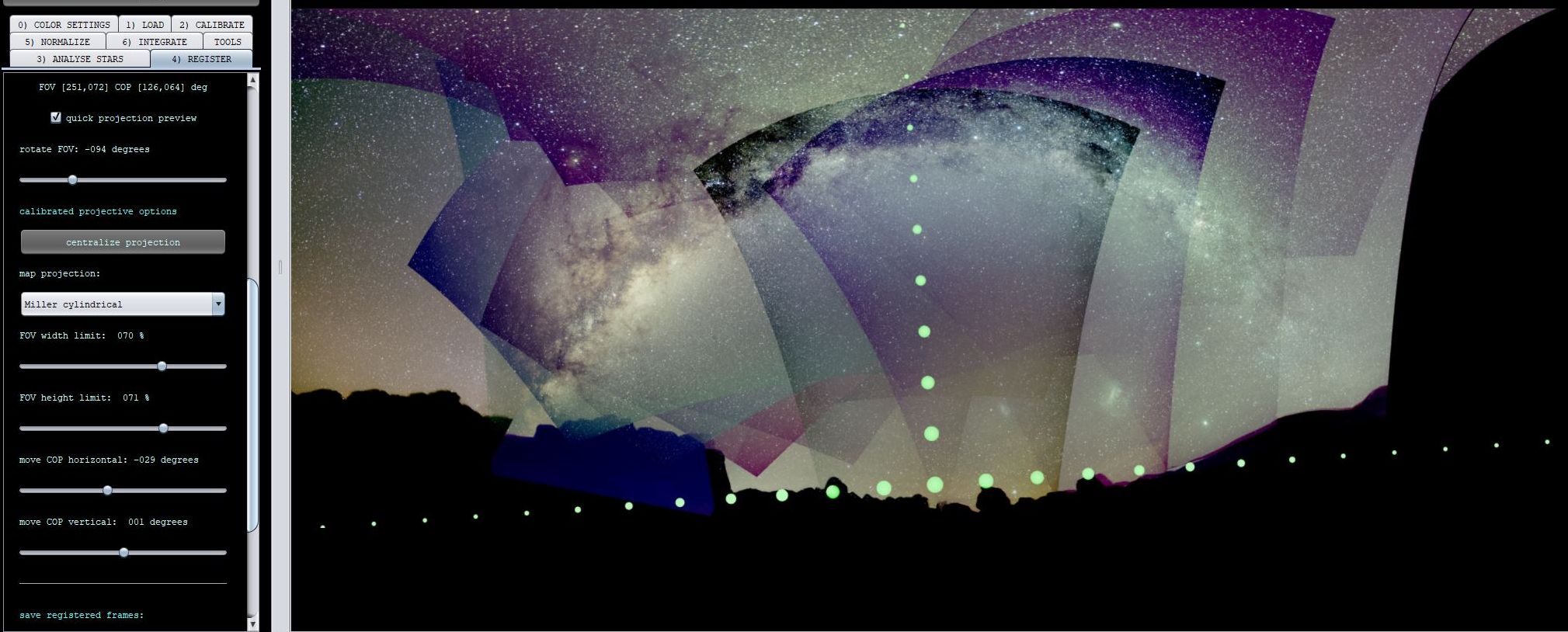
When enabled, each time that you change any of the projection sliders or load an image with the registered or normalized image viewer modes, we will load and show a low resolution preview of the FOV in full composition mode with the Center Of Projection (COP) shown as well as a white/green dot. With the calibrated projective model, you will also see the horizontal and vertical Center Of Projection adjustment lines as subsequent dots to help you move the COP to the desired location. Scroll through the image list with up/down arrow keys in the registered or normalized image viewer modes and you will see that the full FOV will reveal itself quickly.This should help you to quickly get the projection of the FOV that you desire, so simply adjust the projection sliders and witness how the projection changes.
The next images will show 1 example using the quick projection preview. The example really shows the power of the quick preview. It is an 18-panel mosaic with a big Field Of View showing the horizon and the Milky Way. This example needs a good choice for the map projection, Miller Cylindrical in this case, and a change of the Center Of Projection to have a horizontal horizon.


Let me know if this solves it 😉
Mabula
Thank you.
Yes, top is PI and bottom APP. Definitely getting more used to APP. It's registration is nice but it would be awesome to have a button like in PI/WBPP where I can "add directory? and it recursively figures out lights and calibration frames etc
The preview is nice although the UX was a little clunky but maybe I am doing it wrong ? What I did
1. Set the reference manually
2. Had to click Register (is this necessary? - I couldn't get it to work otherwise)
3. Selected "Normalized" not raw in the top dropdown
4. Selected each file one at a time. Sometimes it lets me "mouse down" sometimes ... not?
I click the preview image and then back to the list - sometimes I can mouse down.
Then when I change the angle, it loses my selection and I have to go click the image preview area and once again manually select all the panels
am I doing it correctly? Why not just always show the "selected" frames in the preview ? Or allow me to multi-select all 10 and right-click and preview ? Having to re-add the frames is slow and frustrating
I was able to improve it a little by selecting the shark as the reference panel and rotation -004 but it almost looks like PI and APP pick different stitch points?
Regardless, I think there may just not be enough coverage in FOV (as you can see, I accidentally cut off the shark's butt because it didn't show well in the NINA framer)
The PI one does seem to be overall more contrasty but this is just an autostretch so may not mean much
Actually, a rotation of -003 gives me the result I think I want.
Regardless, I love the APP stacking suite for mosaics. This really takes the pain significantly out of things. Really nice work.
Hi Nick @nickambrose,
Thank you very much for the feedback.
The Quick Projection Preview actually needs to reset the image window when you change the rotation, because unlike you assume here, you can not simply rotate that field of view then to gett the actual correct projection result. It works more complicated. On a simple and small data set like yours, you will not see the difference, but with bigger field of views you definitely will. Especially with the calibrated projective model and fields of views that approach 100 degrees or larger. Projection of the data with a projection map will look different if you simply change the location of the Center Of Projection, which APP now can do. It js a very good improvement from my perspective. The way it works now, may feel a bit clunky, but if you are working on a dataset of 100 or more images and or a big mosaic, it makes no sense to load all the frames in the quick preview, it will cost a lot of power and memory and time. Simply only load the frames that show you clearly how the field of view will change and then step by step adjust the projection. I think it is much faster this way, then having to integrate the data and tweak it each time. Users that process big mosaics will love this new feature because you can now create beautiful field of views quickly. For example, from the release notes:
This is exactly the same data, but the rotation changed and I moved the Center Of Projection to the horizon. To be able to show that properly in a quick preview, each time that you change a projection parameter the image data needs to be reprojected, because of the altered projection. The quick projection preview loads the images in low quality, so they load faster just for the purpose of a preview. I hope this explains it a bit better?
Did you try some mosaics with the new registration engine? They engine is so much better, in Star Analysis, you can also lower the star count to get the result faster. With the older APP versions, our advice was to set star count to 2000-2500 for mosaics. Now 1000 is enough for most mosaics and that speeds things up as well.
Mabula
I think that makes sense. It would be nice if I could select the key images and just have it remember (a subset of the total).
I was able to get the rotated image and it looks good but i have another thread with some errors APP has been giving me when I add the other contributors data in with mine
Uncountable numbers and an array out of range
Unfortunately I don't control their data so it's a tedious process to go through it to see if the data is bad or if APP needs a bugfix
I am getting there !
-Nick
