I have had a very rough 2 months unfortunately health wise. I was struck 3x in a row with bacterial infections. The second infection occurred after a routine hospital checkup and I became very sick. I had to rest and take a lot of antibiotics. Once I was recovering and restarting work 1 month ago, I again became sick. The infection was not yet gone, so even more antibiotics and rest was needed. Needless to say, it took a lot of my energy and I needed a lot of rest.
Finally, the infection is really gone and my energy is coming back step-by-step now and I have started work again. I am terribly sorry to have kept you waiting for support. I will address all outstanding questions and e-mails step-by step and will be on the forum daily from today.
APP 2.0.0-beta47 will come soon as well, a lot of work was already completed before I became very ill, so the release is also nearly ready for you. Beta47 will be much faster actually. Many workflows will be more than 2x faster, mosaics can even be 10x faster than before because registration really received a major boost... all compared to beta46. Before I release it, I will make sure that everything is working properly and then I will release it.
Some basic questions about creating a Bad Pixel Map
Hi. I am just getting started, but am excited to begin processing what look like promising DSLR (modded Canon 6D) wide field images that I took a few nights ago of Orion. I wanted to start by using just my flats and darks to create a BPM, but the tutorials all refer to an earlier version where there was a "Calibrate" button just below the BPM section, and only darks and flats were needed. My current version offers "Save calibrated frames", but that returns an error: "No light frames available, so nothing to do". Should I also load my lights? Also, there's no point in checking for bad columns in a DSLR, as they shouldn't have any, right? Any comments would be appreciated.
Me again. I clicked instead on "create Masters and assign to lights", which wasn't obvious because I didn't load any Lights, only Darks and Flats, but this ran and ended up generating the Bad Pixel Map. No bad columns found, which was expected. So I may not need help at this point, but for a newbie it isn't clear what steps I need to take in what order. I will try and follow the DSLR workflow video and see where I get.
Oh, I did get this error message part-way through the BPM run:
CRITICAL WARNING: flat-field calibration can not be performed correctly!
To be able to perform accurate flat-field calibration, the provided flats need to be calibrated by either
- a MasterBias, of the same ISO/gain value as the flat frame, or - a MasterDarkFlat of the same ISO/gain value and the same exposure time as the flat frame, or - both
My thinking is that this can be disregarded, as I was only trying to build the BPM.
You also need bias frames to calibrate everything correctly. What I would do is to load all calibration frames and then select the create masters button. I agree it's not super obvious, a manual would be nice and I believe it's been worked on.
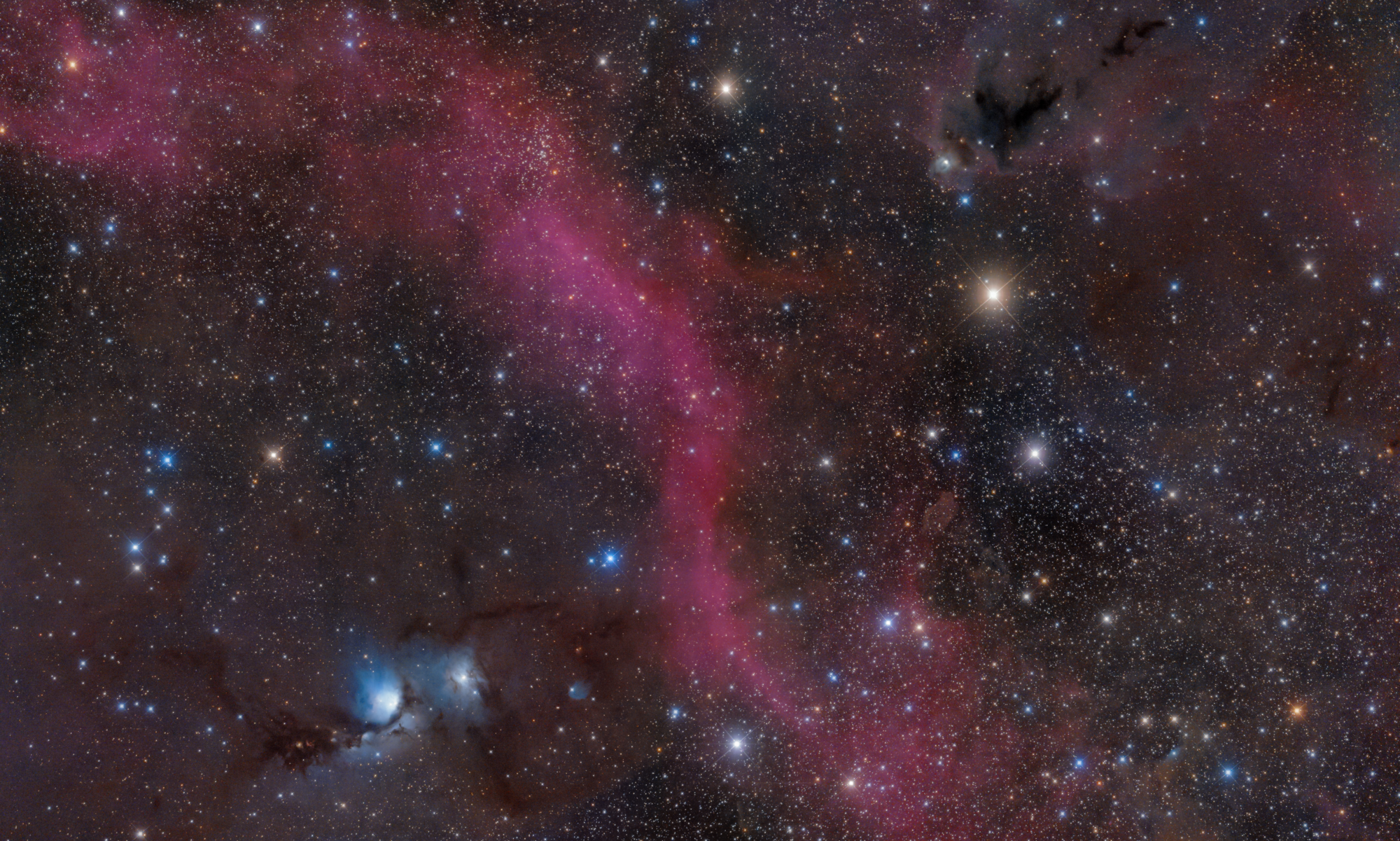
Vincent: Thanks; I didn't try the "Create Masters" button with everything loaded, but that could be a nice shortcut. Instead, I ended up doing things piecemeal, as per Mabula's tutorial. For the BPM, I loaded only darks and flats. I then created a master flat using flats, bias frames, and the BPM. I then created a master dark using darks alone, after which the lights were processed with the master flat, the master dark, and the BPM. Each time I went back to Load, hit Clear, and loaded only what was needed for that step. I followed this with Analyze Stars, Register, Normalize, and Integrate. All a bit head-spinning, but APP still looks so much easier to learn than Pixinsight, which was too much for me. I have a lot to learn, but simply playing with the black point slider produced a gratifying photo of Orion taken under dark skies last Tuesday. This is my first real astrophoto (film days efforts aside), and it is a tribute to APP that I got this far so fast. It should only get easier for the next time!
Note: The lens is a Sigma 85 mm f/1.4, but I had it stopped down to f/2.5
That's a great result for a first try (in the digital era 🙂 )! Yes, that's one of the goals of APP, to be easy and get very good results straight away (with the best calibration engine there is at the moment, for sure). I would use the light pollution option in the tools tab (9) to create boxes all around the image (doesn't matter if they include stars) and you'll get that gradient out of it as well.
Thanks... there were so many stars in the lower left corner that I didn't notice the gradient. I applied boxes for both "calibrate background", and "remove light pollution", and the result is clearly better. I might as well always do that.
Thanks... there were so many stars in the lower left corner that I didn't notice the gradient. I applied boxes for both "calibrate background", and "remove light pollution", and the result is clearly better. I might as well always do that.
First of all, that is a great result of this fantastic region to image to start with 😉
Let me respond to some of your questions :
Me again. I clicked instead on "create Masters and assign to lights", which wasn't obvious because I didn't load any Lights, only Darks and Flats, but this ran and ended up generating the Bad Pixel Map. No bad columns found, which was expected. So I may not need help at this point, but for a newbie it isn't clear what steps I need to take in what order. I will try and follow the DSLR workflow video and see where I get.
Oh, I did get this error message part-way through the BPM run:
CRITICAL WARNING: flat-field calibration can not be performed correctly!
To be able to perform accurate flat-field calibration, the provided flats need to be calibrated by either
- a MasterBias, of the same ISO/gain value as the flat frame, or - a MasterDarkFlat of the same ISO/gain value and the same exposure time as the flat frame, or - both
My thinking is that this can be disregarded, as I was only trying to build the BPM.
Indeed, bad column detection can be left disabled for DSLR camera's. It's only needed for astronomical CCD camera's.
And yes, the issue about improper flat calibration can be disregarded if you only create a BPM from the flats. I will make a note of this for development, that in this case, the warning shouldn't be thrown.
Vincent: Thanks; I didn't try the "Create Masters" button with everything loaded, but that could be a nice shortcut. Instead, I ended up doing things piecemeal, as per Mabula's tutorial. For the BPM, I loaded only darks and flats. I then created a master flat using flats, bias frames, and the BPM. I then created a master dark using darks alone, after which the lights were processed with the master flat, the master dark, and the BPM. Each time I went back to Load, hit Clear, and loaded only what was needed for that step. I followed this with Analyze Stars, Register, Normalize, and Integrate. All a bit head-spinning, but APP still looks so much easier to learn than Pixinsight, which was too much for me. I have a lot to learn, but simply playing with the black point slider produced a gratifying photo of Orion taken under dark skies last Tuesday. This is my first real astrophoto (film days efforts aside), and it is a tribute to APP that I got this far so fast. It should only get easier for the next time!
As you experienced, you can do everyting step by step. However you can also simply load all light and calibration frames and set all settings in 2)-6) and click on 6) Integrate. Then all will be done in a single flow in the right order 😉
Mabula: Thanks for letting me know that I can trust everything to happen in the right order with all files loaded in for one step integration. I am really impressed with APP, but am hungry to learn more. The pop-up tips are helpful, but either more of them, and/or a detailed PDF describing the various choices, especially in post-processing, would be great. Some simple bulleted workflow actions in order would also help for basic classes of work. But the fact that I got where I did in a single afternoon is really exciting. Awesome product!