
2026-10-09 APP 2.0.0-beta48 has been released !
This is mainly a bug fix release for the reported bugs in beta47. In addition it has a significant User Interface performance improvement noticable when you need to process 1000s of images in APP.
2026-10-03 APP 2.0.0-beta47 has been released !
This is a very big release... many code optimizations/rewrites, many parts of APP are much faster and more precise, especially star analysis and registration are much faster ! Big mosaics will go much faster 🙂
And we introduce a new preview filter, which includes the new Adaptive Deep Sky Stretch and a General Levels Stretch, this has been long over due. The old preview filter (the panel on the right side to stretch and preview your data) has not been updated for a couple of years and it is a critical part of any APP session.
Adaptive Deep Sky Stretch or ADSS is a much more intuitive stretch algorithm. It is also color preserving (which is a great new addition in itself ! ) which means that the highlights are no longer bleached, color is maintained from the linear data while stretching. You can simply stretch your data using the sky background level and signal width sliders which work much easier and more intuitive. You no longer need to fiddle with the old complicated sliders with zoom buttons. All the zoom buttons for the sliders are made redundant. And you can enter slider values in the slider value fields yourself. I will make a youtube video in the coming days to explain and fully introduce ADSS. Once the video is ready, it will be highlighted on the forum.
RGB Combine upgrade !. The RGB Combine Tool has been rewritten mostly. The tool is faster and easier to use and most importantly, the Luminance slider to inject a luminance channel or channels into the RGB composite is now working correctly. It no longer bleaches the RGB colors. Combined with the new ADSS preview, you will get much better and easier great composites with great color! I will also explain this in a new youtube video.
Hi there - I have split an hours worth of data into Ha and Oiii for two targets and both are getting this error. I am using 1.083. I have done this a few times and everything worked. I think this started happening after the update. I'm doing the same steps as before; loading each image (both as a tiff or a fits file), assigning the type of filter and then changing the Ha to 100% red then recalculate. Any ideas?
Thank you!
Claire
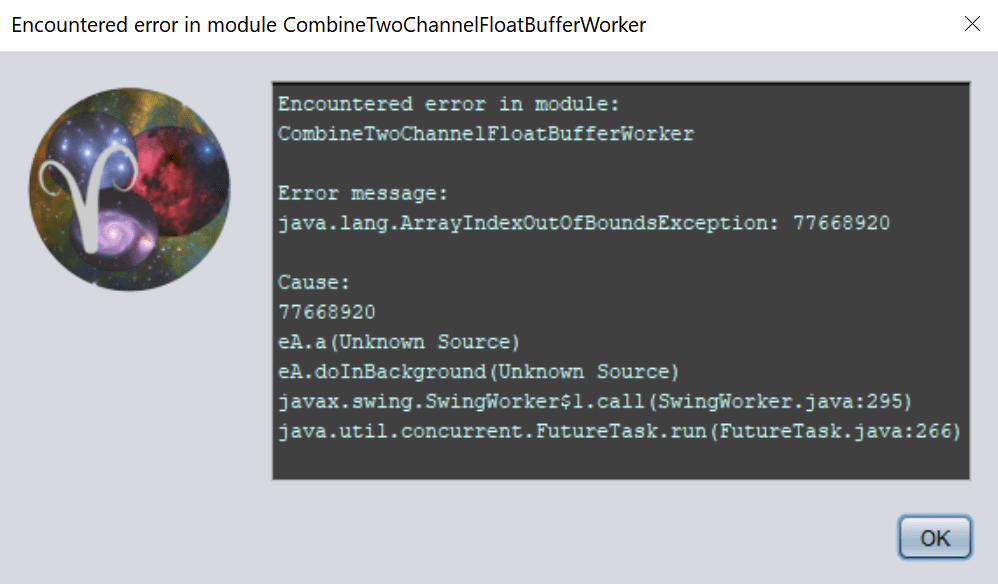
@cheekywagwan Claire, that's odd. Coukd you please upload the FITS images to
https://upload.astropixelprocessor.com/
using upload both for username and password? Please create a directory called cheekywagwan_combine_error and put the files in there. Then we can have a look at what the possible cause may be.
@wvreeven heya - yup will do - although I just noticed something with the files - I'm guessing the files auto save (looking at the time) then my save to no stretch the file size is significantly smaller... I will upload all 4 🙂
Claire

@wvreeven hey again - ok I have uploaded working data (HeartNebula) and result and uploading Pleiades data - hth - also note if the original data is stacked as a normal stack rather than extracted ha oiii it works fine...
@cheekywagwan Thanks a lot. According to the FITS headers of the images, all are Ha images and not OIII. How did you split the data exactly?
In any case, I don't get an error in 1.083 but I also don't get to see an image in APP as soon as the calculation finishes. Which two images were you loading to get the popup with the error?
@wvreeven hmm. Interesting. Lol hope not user error but good in a way if is. I will delete the 7 Sisters split data and recrunch out. Then try again and see what happens.
Claire
@wvreeven hmmm ok I have just resplit the files, stretched and then saved them. Bringing them in as 2 channels, set the ha to 100% red then reintegrate - same error. Files are in the upload. Might have to roll back.
@cheekywagwan There still is something wrong with your data since APP recognizes both files that you uploaded as Ha. Can you please answer my earlier question and tell me how you split them?
If I go to Tools -> Combin RGB and select the HOO 1 formula. Then I load the two files and make sure that the one with OIII in the file name is assigned to the OIII channel and press the calculate button, I get this:

So, can you explain me exactly how to reproduce the error?
Heya - ok will go step by step - everything as default unless otherwise selected
a) Select working dir
b) Section 0 - Pattern RGGB - Force Bayer - Ha-OIII Extract Ha
c) Section 1 - Light - select lights (no other data - new camera just learning it) - 13 x 300sec. Frames channel Hydrogen-alpha. (<-- I have a bad feeling about this) Only 1 session. 7Sisters object name.
d) Section 3 - no calibration files so straight to Star analysis. 500 stars. Have to say the software is operating lightening quick now on my 16gb Core i7 7th gen.
e) Section 4 - Register - start registration
f) Section 5 - Normalize - Normalize lights
g) Section 6 - Integrate - Integrate. Name: 7Sisters. Stretch is already ticked.
Complete. Save - File type FITS. 16 bit int.
h) Section 0 RAW/FITS - Ha-OIII Extract OIII - Yes want to change
i) Section 5 - Normalize
j) Section 6 - Integrate - Rename to 7Sisters_oiii
Complete. Save - file type FITS. 16 bit int.
k) Tools - Combine RGB - Add Channel - 7Sisters-Hydrogen-alpha-session_1-St.fits - Formula - LRGB1 Filter Hydrogen alpha - ok
Add channel - 7Sisters_oiii-Hydrogen-alpha-session_1.fits - Formula - LRGB1 Filter - Oxygen iii - ok
HA file - R: 100
Calculate
Please wait. Error.
Has to be user error 🙁
Claire. HTH. Are there any log files I can get that might help? If its not user error.
Where I feel I am going wrong - One: I should reset completely and make sure Section 1 Frames channel is Oii or Two: I should be doing a star analysis and registration for the Oiii channel too.
@cheekywagwan Thanks a lot for the extensive reply 🙂 Some questions/comments:
b) In general there is no need to select the pattern and enable Force CFA. APP can very well figure this out on its own.
c) Do you select the Ha channel yourself or does APP select that for you? I suspect the first, because it looks like you are loading color images. What happens if you do not select the channel?
d, e, f, g) No need to run the intermediate steps manually. Just go straight to tab 6 and click the integrate button. No need to save afterwards. APP does this for you.
h) Great!
i, j) Again no need to execute the intermediate steps manually. Just go to tab 6 and click integrate again. And also again no need to save. APP does that for you.
k) I'll try with the LRGB1 formula but in this case you should use the HOO 1 or HOO 2 formula.
HTH, Wouter
@cheekywagwan Thanks a lot for the extensive reply 🙂 No worries I work as an eLearning programmer - sometimes stepping through javascript line by line is the only way I can debug Some questions/comments:
b) In general there is no need to select the pattern and enable Force CFA. APP can very well figure this out on its own. <-- Impressive
c) Do you select the Ha channel yourself or does APP select that for you? I suspect the first, because it looks like you are loading color images. What happens if you do not select the channel? <-- Yes these are colour images from an Altair 26c. I select the channel. I used to select RGB (And with this data all works ok, no errors) but after seeing Stacey Downtons video on you tube about this TriBand filter, I've been using this integrate technique.
d, e, f, g) No need to run the intermediate steps manually. Just go straight to tab 6 and click the integrate button. No need to save afterwards. APP does this for you. <-- Impressive x 2 - I noticed I was getting 4 files instead of 2 (2 not stretched and 2 stretched that I was saving). D'oh.
h) Great!
i, j) Again no need to execute the intermediate steps manually. Just go to tab 6 and click integrate again. And also again no need to save. APP does that for you. <-- it is odd that software actually does things properly without being told - just goes to show how good this is. Try using Captivate - it doesn't even do the things it IS told ...
k) I'll try with the LRGB1 formula but in this case you should use the HOO 1 or HOO 2 formula. <-- will give it a go. Would like to know what is falling over; me or the software either way want to help provide feedback. I will try doing the extractions using the Start from afresh method each time - just to rule that out.
HTH, Wouter
k) Tools - Combine RGB - Add Channel - 7Sisters-Hydrogen-alpha-session_1-St.fits - Formula - LRGB1 Filter Hydrogen alpha - ok
Add channel - 7Sisters_oiii-Hydrogen-alpha-session_1.fits - Formula - LRGB1 Filter - Oxygen iii - ok
HA file - R: 100
Calculate
Please wait. Error.
I just gave this a try and I cannot reproduce the error. Very strange. I am on macOS so maybe that's why? I mean, if you are on a different OS than me, maybe it is an OS-specific error that gets triggered? I wouldn't know why that would be the case, however.
Ah I am on a Windows laptop .. hmm. I am experimenting - I just put all the data in and select HA as the channel (files show up as red at the bottom), extract ha etc and hit Integrate. Lol it does it all by itself?! What is this magic?! 😀 Now I just put it on extract Oiii as the channel and the files show as greeny blue - NOT seen that before. Any how just set it off again to see the result.... again love what was done with the speed... amazing!
Edit! Yes! Result! Yay! Thanks for your patience! I will continue processing tonight!
I just put all the data in and select HA as the channel (files show up as red at the bottom), extract ha etc and hit Integrate. Lol it does it all by itself?! What is this magic?! 😀 Now I just put it on extract Oiii as the channel and the files show as greeny blue - NOT seen that before.
Yes, that is how it is supposed to look like!
